

Yesterday I typed one sentence into my phone. My Mac, sitting at my desk, read it, opened a file, and wrote the note down for me.
I want to be honest about the level we are talking about here. I am not technical. I spent years in enterprise marketing without writing a single line of code. Setting this up required me to open the Terminal on my Mac, which is the black window programmers use. I basically had never opened it, until my technical co-founder, who is also an AI engineer, one time some months ago told me to open it and literally hold my hand once I did. Later in this post I will show how to do it, and trust me, you can do that too: open the terminal on your computer.
This post also has the exact steps, the exact commands, and my actual screenshots, red errors included.
One warning before we start: these instructions will age. The tools change monthly, and some button or command will look different by the time you try this. I am showing the real steps anyway, because the point is not to memorise them. The point is that you meet the Terminal once, see that nothing explodes, and learn the shape of how this works. The shape will stay the same long after the details change.
What we are building
The plain version: my AI assistant, Claude, works on my computer, inside my project folders. Until yesterday, I could only talk to it while sitting at that computer. Now I can talk to it from my phone, from anywhere. The AI still does all the work at my desk. My files never leave my Mac. The phone is just the walkie-talkie.
There is a fancier version where the AI runs in the cloud and you need GitHub and a few other things. You do not need any of that for this. You need three things:
- A Claude subscription (Pro or higher)
- Claude Code installed on your Mac (mine was already there; if yours is not, the install guide at code.claude.com is short, and yes, it also uses the Terminal)
- The Claude app on your phone, logged in with the same account
Why I wanted it
I keep one folder on my Mac with everything for my writing. Ideas, drafts, plans. The system works, but it had one weakness: it only existed at my desk.
And ideas do not happen at my desk. They happen in workshops, on panels, in the middle of a conversation when someone asks a question I cannot stop thinking about. By the time I am back at the computer, the sharp version of the thought is gone. I wanted to close that gap. One sentence, from my pocket, straight into the system, while the moment is still warm.
That was the first reason. The honest second reason: I kept seeing and hearing other people who work with AI steer their work straight from their phones, and I wanted that too. And I do not have only one project. I work on several different projects with my Claude, and I want to be able to move them forward also when I am not by the computer.
Step 1: Open the Terminal
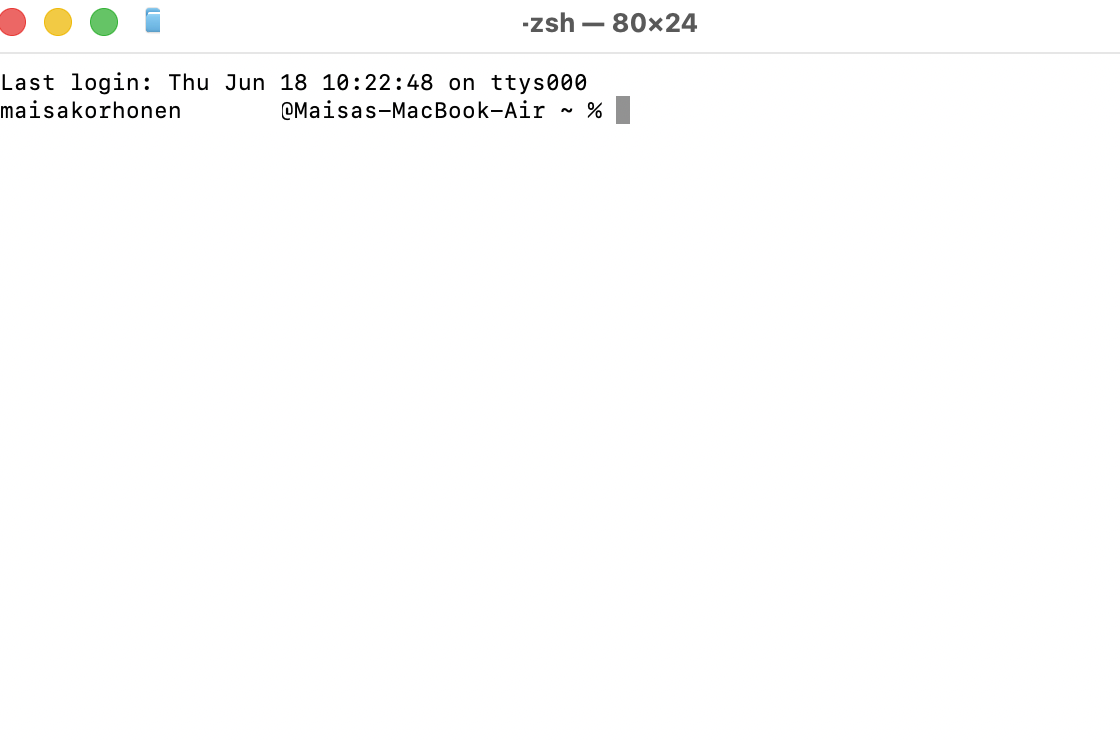
Press Cmd and the space bar together, type "Terminal", press Enter.
A plain window opens with some text and a blinking cursor. This is the Terminal. It is not a hacker tool. It is just a way to talk to your Mac by typing instead of clicking. Nothing happens unless you type something and press Enter. You cannot break anything by looking at it.
One thing about mine, before you compare it to yours: my Terminal is white, not black. That was a tip from someone who is not technical either, just a few steps ahead of me at the time: change the background from black to white, and the window stops feeling like a hacker scene. It is a small thing, and it works. You can do it in Terminal under Settings and Profiles, pick a light one. Mine has been white ever since, which is why my screenshots will not look like the films.
Why do we need it at all? Because this remote feature is switched on with a written command, not a button in an app. A lot of the newest AI features are like this. They arrive as commands first and get buttons later. Which is exactly why it is worth meeting the Terminal now: the people who wait for the buttons are always a few months behind the people who will type one line.
Step 2: One command
Some background before the typing starts. I was connecting one specific folder: the one where all my writing lives. Ideas, drafts, plans. That folder was the whole reason for this project, so that is the desk my phone needed to reach. Yours might be a folder of client work, or recipes, or your thesis. Any folder works.
And a small confession about the command below: I did not come up with it. I asked Claude what to type, and Claude gave me the line. That is allowed. Nobody starts by knowing these by heart, and asking is not cheating. It is how everyone around you is doing it too.
Type this and press Enter. The folder part should be the folder you want your AI to work in:
cd ~/Projects/maisa-personal-brand && claude remote-control --name "Blog"
That looks like code, so let me translate it word by word, because it is friendlier than it looks:
cd ~/Projects/maisa-personal-brandmeans "go into this folder." cd stands for change directory, which is computer for "open that folder."&&means "and then."claude remote-controlmeans "start Claude here, with the phone remote switched on."--name "Blog"just names the session, so your phone shows "Blog" instead of a random machine name.
So the whole line reads: go into my writing folder, and then start Claude there with a remote my phone can find, called Blog. That is all a command is. A sentence with strange spelling.
Step 3: Meet the red text
Did it work on my first try? Of course not.
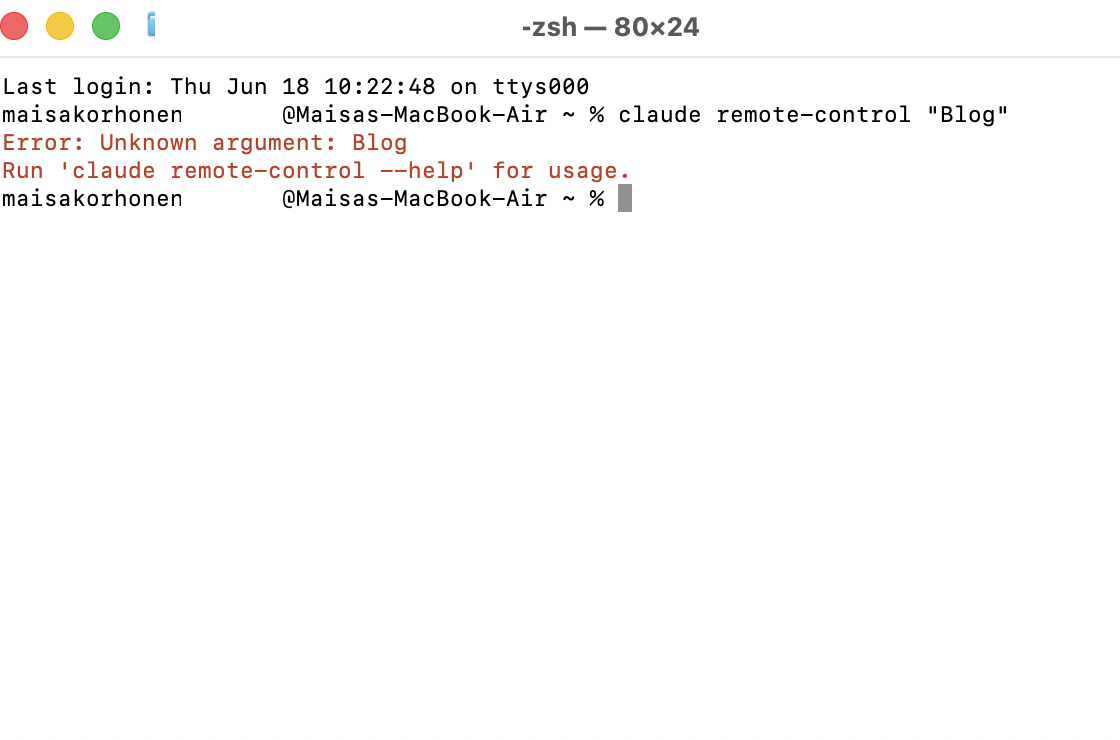
The Terminal answered me in red: "Error: You must be logged in to use Remote Control." Red text looks like you broke something. You did not break anything. Red text is how this world says "not yet."
The fix: the Terminal version of Claude is separate from the app and the website, so it did not know who I was. I typed claude, pressed Enter, and inside it typed /login. It asked how I wanted to sign in. I picked the claude.ai account option, my browser opened, and I clicked Authorize on a permission screen.
Along the way it asked me a few setup questions I did not fully understand, about renderers and themes. I asked Claude and pressed Enter on the suggested answer. That was fine. You are allowed to not understand every question. The suggested answer exists for exactly us.
My second error, for honesty: after logging in, the command from Step 2 complained again, because the instructions I was following were a month newer than the version on my Mac. It wanted --name written differently. We asked the tool itself with claude remote-control --help, read what it wanted, and fixed it. Every error took about a minute. Calm beats frantic.
Step 4: Say yes
Once the command runs, it asks a couple of questions. "Enable Remote Control?" Type y, press Enter. It asks where new sessions should work; press Enter for the suggested answer (your real folder).
Then it says Connected.
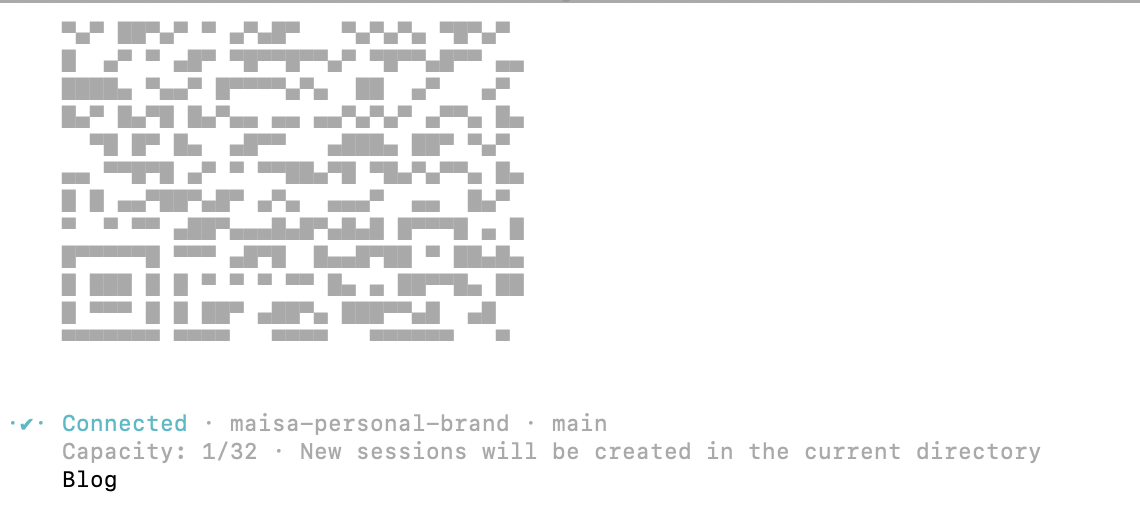
Leave that window open. That is the whole rule of this setup: the Terminal window is the on switch. Close it and the walkie-talkie goes silent. Your Mac also needs to stay awake, so if you leave the house to test it, plug it in and leave the lid open.
Step 5: Pick up your phone
Open the Claude app. Tap the Code tab at the bottom. There it is: "Blog", with a green dot, under your Mac's name.
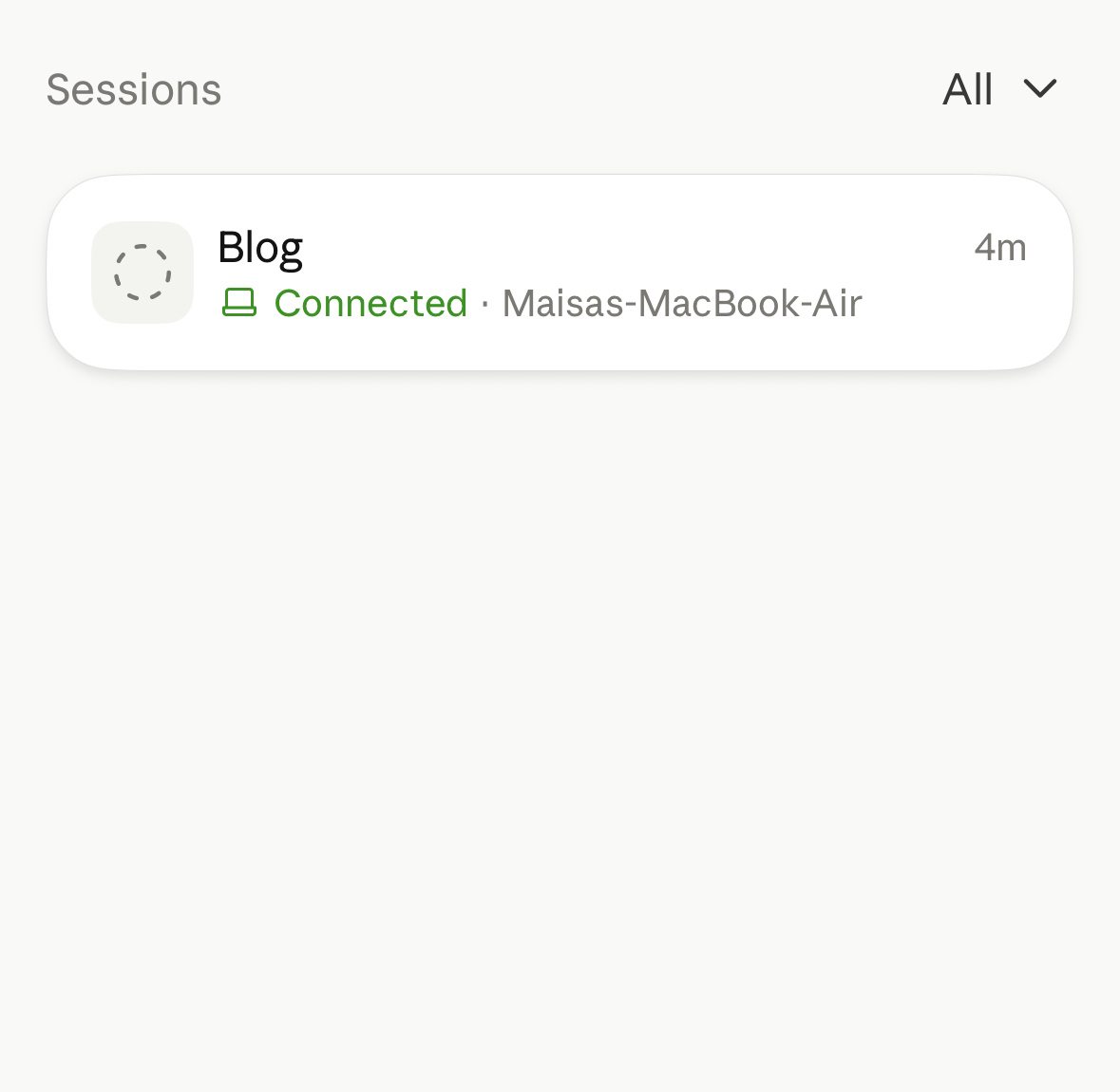
I tapped it and typed: "Add a line to ideas/inbox.md under Lived moments: sent from my phone while my Mac does the work."
The moment it worked
When I sent that first message, nothing happened on the Mac screen. No lights, no scrolling text. The Terminal just sat there.
So I did the thing I would tell anyone to do with AI: I did not trust the demo, I checked the result. I opened the file I had asked it to edit.
The line was there. Written into my idea inbox, exactly where I asked, sent from the outdoor sofa at my summer place in the Stockholm archipelago.

Nothing "seemed" to happen because the work happens behind the scenes, in the actual files, not in a light show. I have started to think that is the most honest thing about this whole setup. The proof is in the file, not on the screen.
One warning from the other side
Once it works, you will want to connect every folder you have. Do not. I connected one, the one where ideas need to land. One walkie-talkie you actually use beats five green dots you never tap.
The bigger point
If you had told me a year ago that I would run an AI on my computer from my phone, I would have assumed that was for engineers. It took one sitting, three errors, and no code. The commands above are the entire technical content of my week.
That gap, between how technical something sounds and how technical it actually is, is the gap most marketers are standing on the wrong side of right now. Not because it is hard to cross. Because everything about it, the Terminal, the red text, the strange spelling, is dressed up to look harder than it is.
One sentence, typed into a phone. A file, quietly updated on a desk inside the summer cottage while I am chilling in the outdoor lounge.
That is what being technical looked like this week. You could do it too. The black window is waiting, and it is much more polite than it looks. Mine is not even black anymore.